 Tovak
TovakRequest notifications
Enable notifications to hear about new requests and updates to your orders.
TOVAK DRIVER · iOS / ANDROID
Install the app, enable location sharing and notifications, and learn how to manage customer requests. Find phone setup instructions and help below.
Not listed on Tovak yet? Apply to list your business.
Requests require an app version with the Requests tab.
TOVAK DRIVER
Help customers find your towing or roadside assistance vehicle. Allow the app to access and share your location while the screen is locked or you use another app.
Also check the instructions for your phone brand below. The app checks the main permissions and Android’s standard battery optimization. Check any additional manufacturer restrictions and auto-start permissions manually.
Setting names and menu locations vary by model and system version. If you cannot find an option, use the search in your phone’s settings. Select Tovak Driver wherever you see a list of apps.
The current Android version of the app needs working Google Play services to determine your location. Background permissions alone are not enough on phones without these services.
If your phone does not have Google services, or you are unsure, contact support and tell us your phone model. This limitation also applies to other phone brands without Google services.
AFTER SETUP
A green map marker can remain after an earlier update. Check that the position has changed. The location icon at the top of your phone’s screen does not by itself confirm that the server received your location.
Check the background settings for your phone brand again. If the problem happens again, look for the Tovak Driver notification in the Android notification panel before opening the app. Then open the app and note the status and the time the server last confirmed your location.
Waiting for GPS means the app needs a fresh location. Check that location is enabled and that reception is good: getting a location can be difficult indoors or in underground parking.
If the problem continues, contact support with your phone model, Android or iOS version, app version, the approximate time of the problem, and whether the vehicle was moving. Include a screenshot of the status and tell us whether the notification was still visible. Do not send your password.
Open the Requests tab. Suitable jobs appear based on your location and services. The customer chooses which provider’s offer to accept.
Check the pickup and destination, requested service, vehicle, timing, access conditions and any notes or photos the customer has added.
Enter the total price, estimated arrival time and what is included. Sending an offer does not assign the job to you.
Once the customer chooses you, contact details become available to both sides. Call from the order to confirm the details before setting off.
Open directions to the pickup and destination in your preferred navigation app. Update the order when you set off, arrive and finish.
Enable notifications to hear about new requests and updates to your orders.
If the job changes, request a revised price in the order and wait for the customer to approve it.
Find completed jobs in your history. You can report a problem with a request from its details.
These screenshots show the Android version of the driver app.
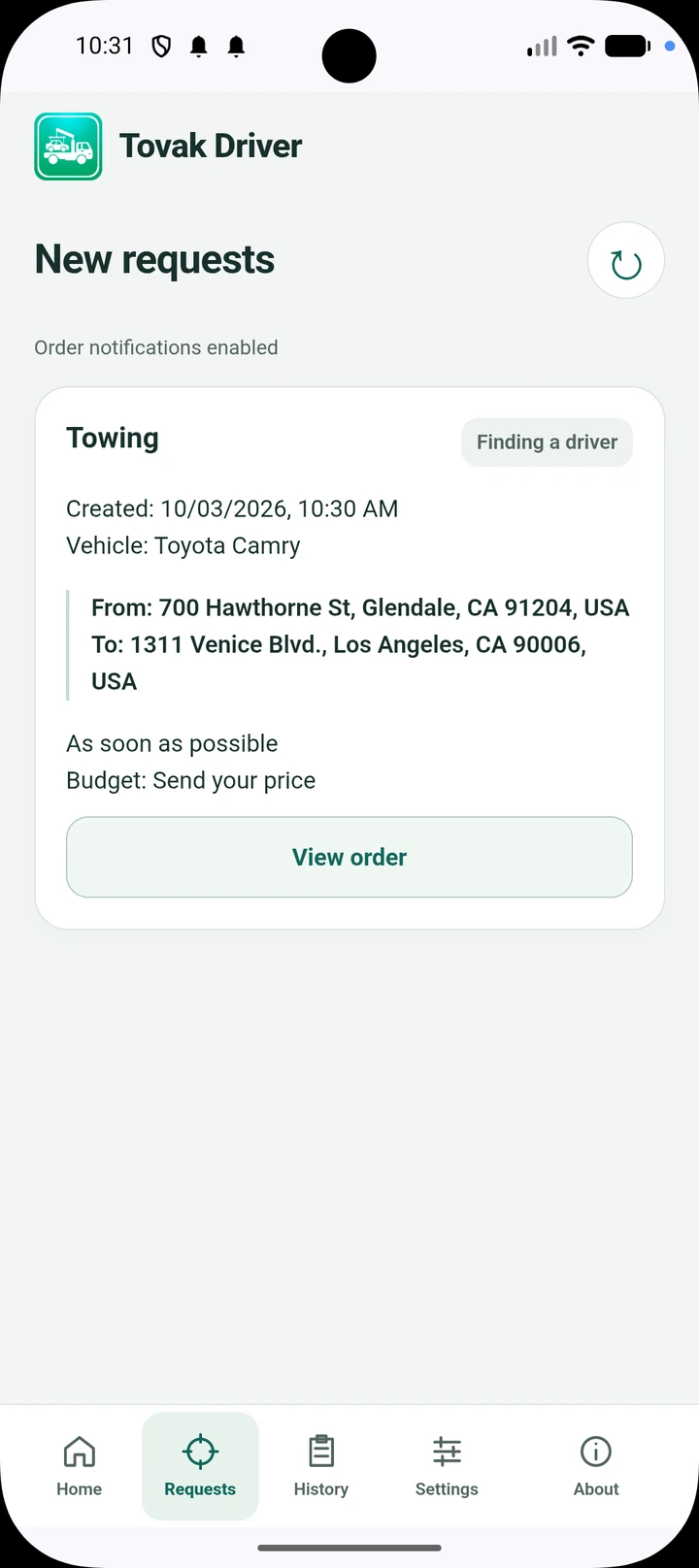
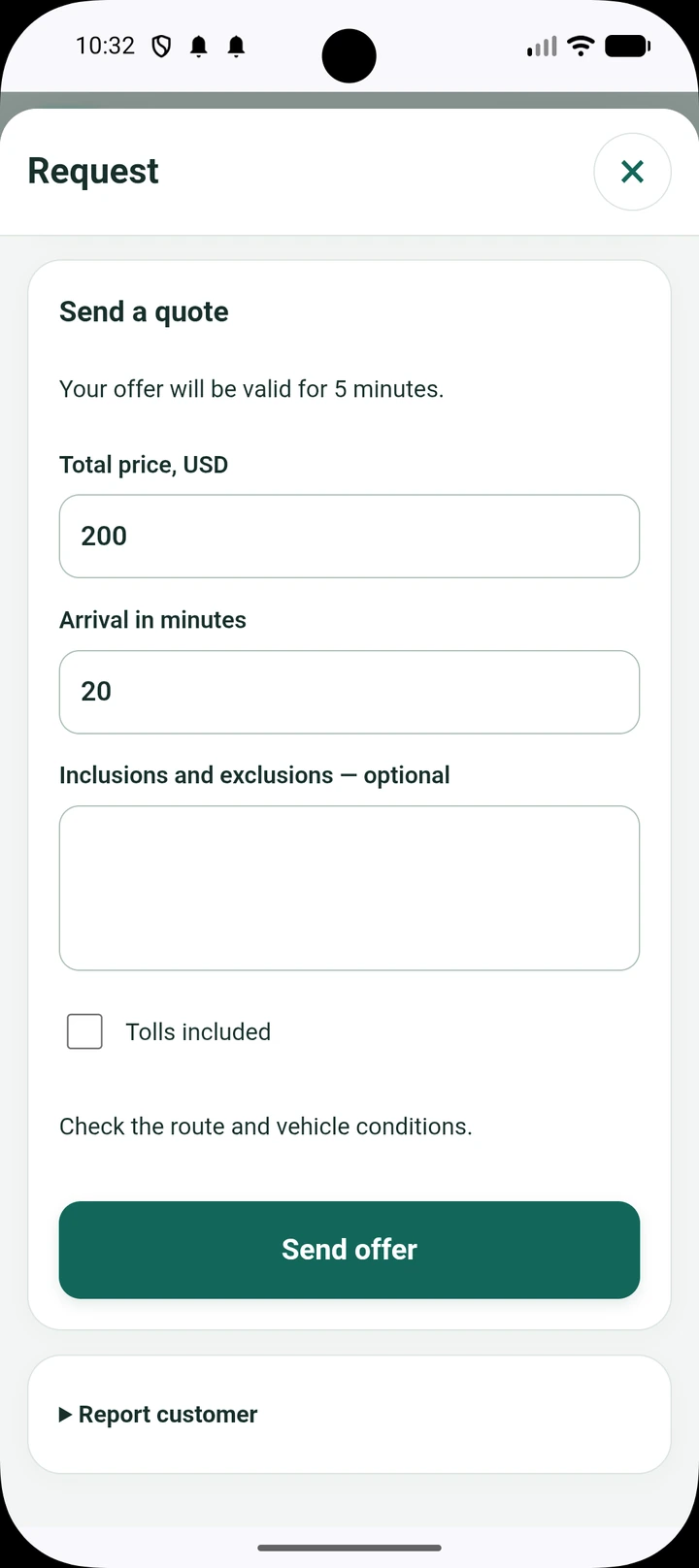
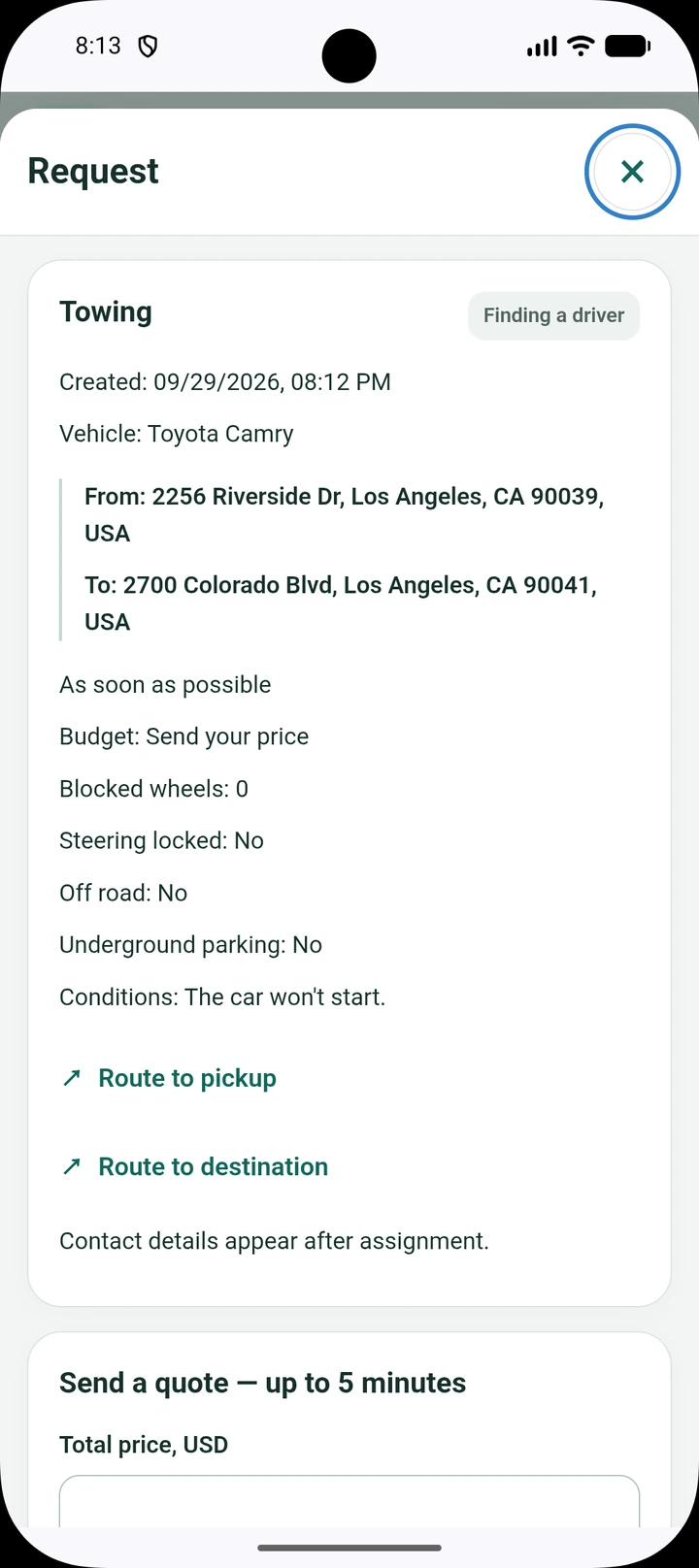
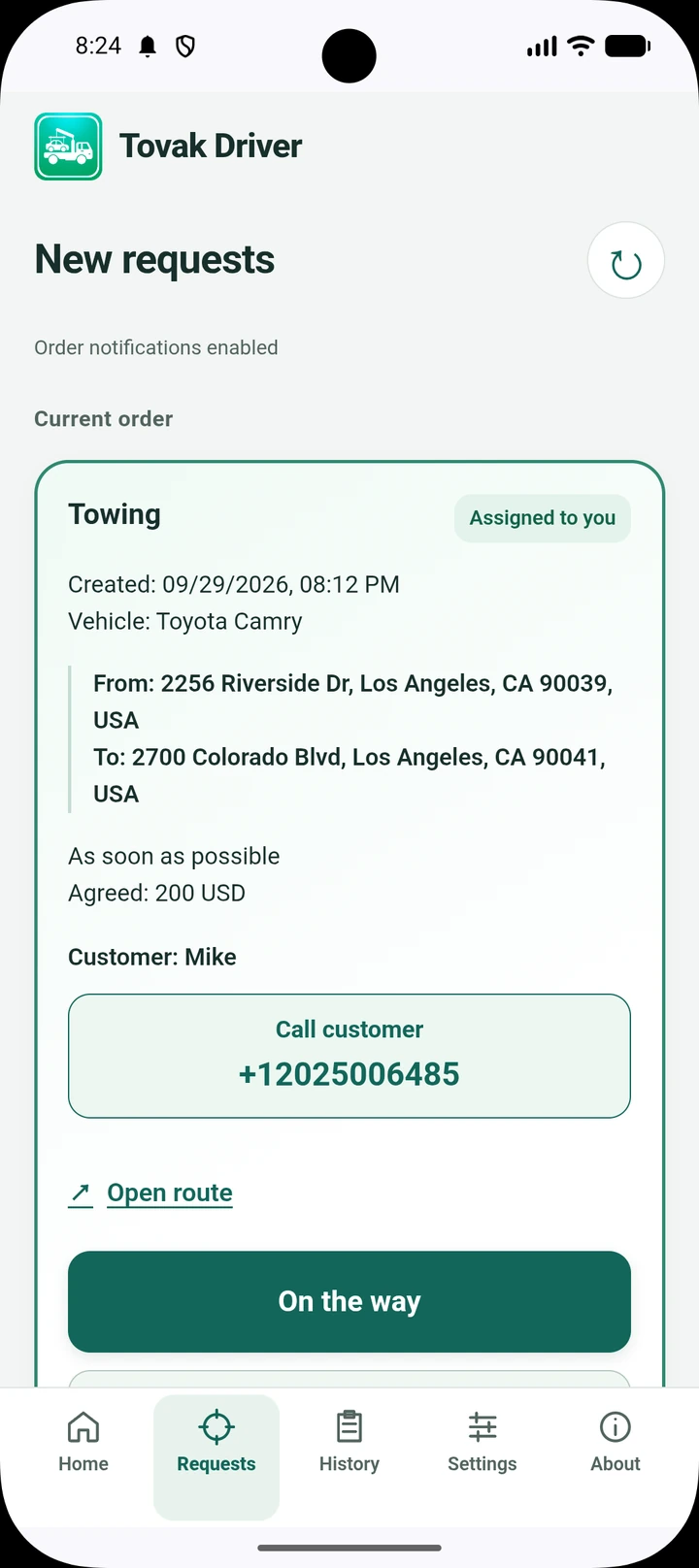
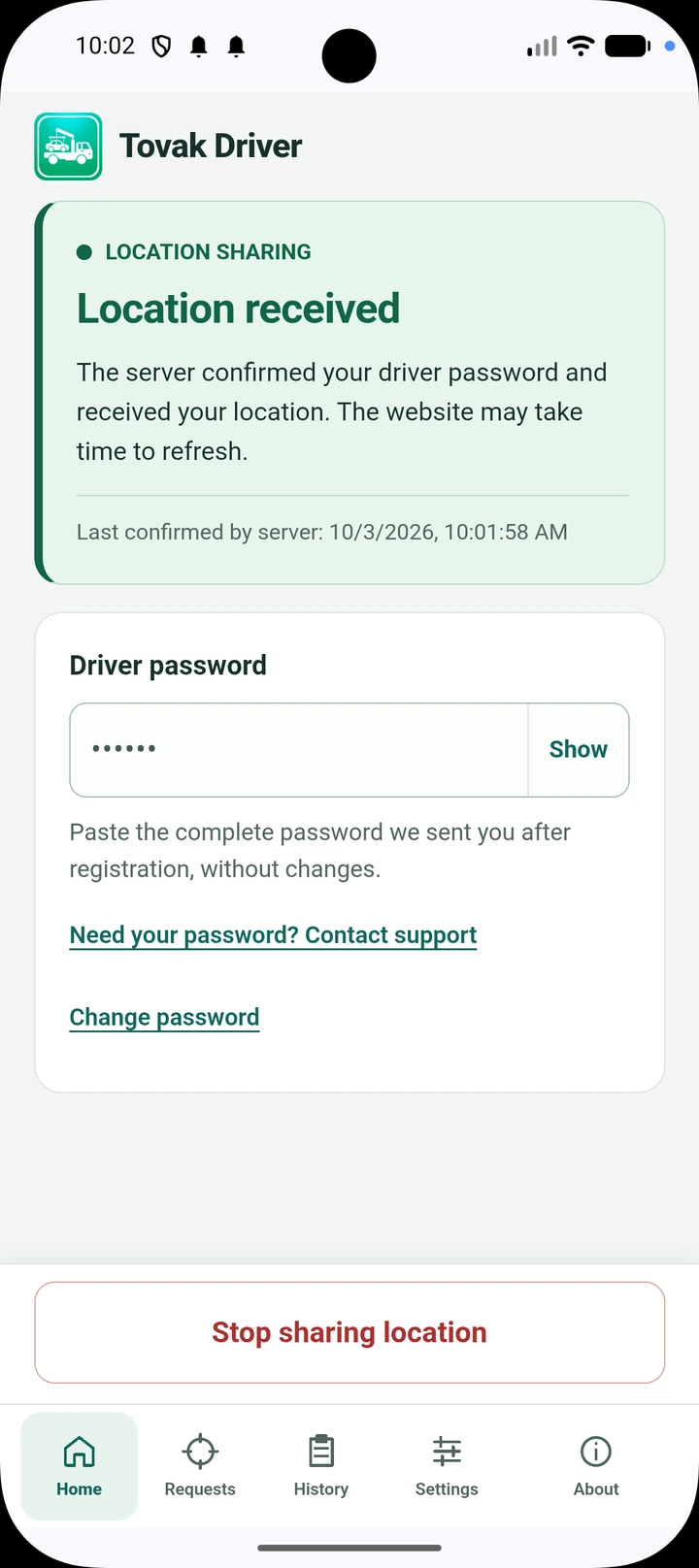
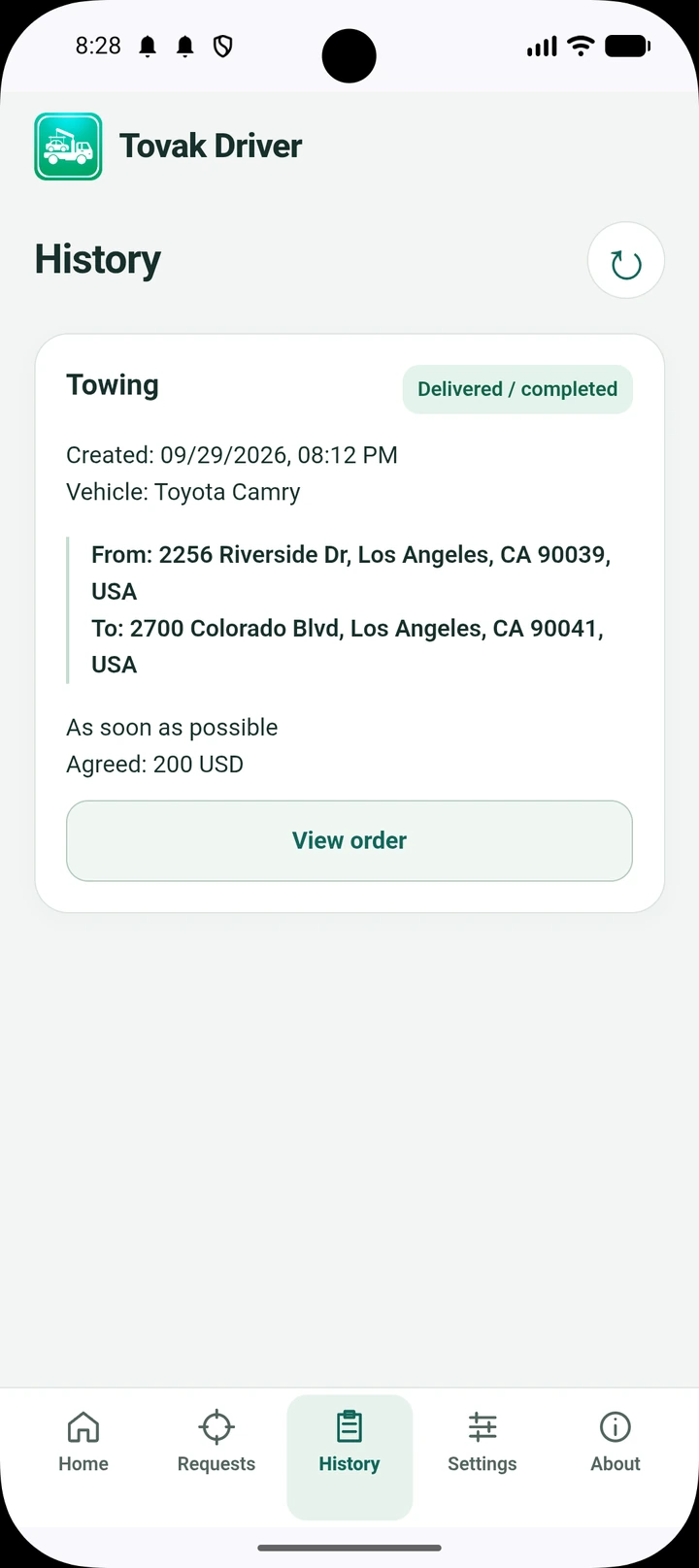
Swipe to see the other screens. Tap an image to view it at full size.
Check that location sharing is running and that the home screen shows a recent server confirmation. Requests depend on local demand and suitable services; an empty list does not by itself mean something is wrong.
Allow app notifications in your phone’s settings. If they are already enabled, check Do Not Disturb and background restrictions. Make sure location sharing is running.
Open the current order, send a revised price request and wait for the customer to approve it. Discuss the reason for the change directly.
Open Settings and find Navigation. Your selection is used for directions to the pickup and destination.
Tap “Stop sharing location” on the home screen. Use the start button on the same screen when you want to resume.
For help, email [email protected].